How to connect an AI agent to WhatsApp
Connect a WhatsApp Business number to a Sell Whisper AI agent through Meta so it answers customers from your knowledge base. On Starter and above.
Do this in order
Create an agent and add its knowledge
Sign up at /register, create an agent and add the pages, files and Q&A entries it should answer from. The same agent and knowledge answer on every channel you connect. WhatsApp is available on Starter and above.
Connect your number through Meta
Open the agent, go to Deploy and click Connect with Meta on the WhatsApp card. A Meta window opens: sign in and authorize access to your WhatsApp Business account. No tokens are copied by hand.
Check that the channel is active
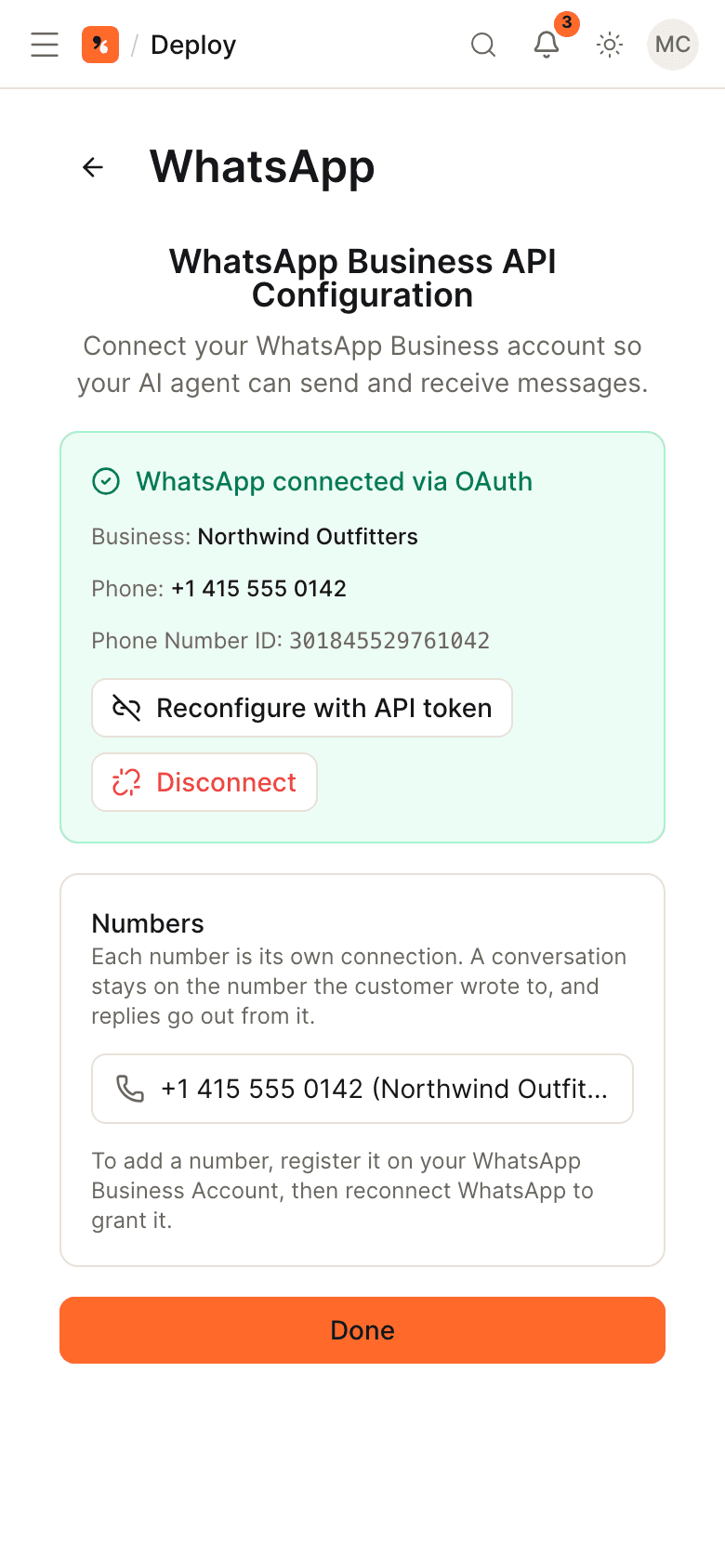
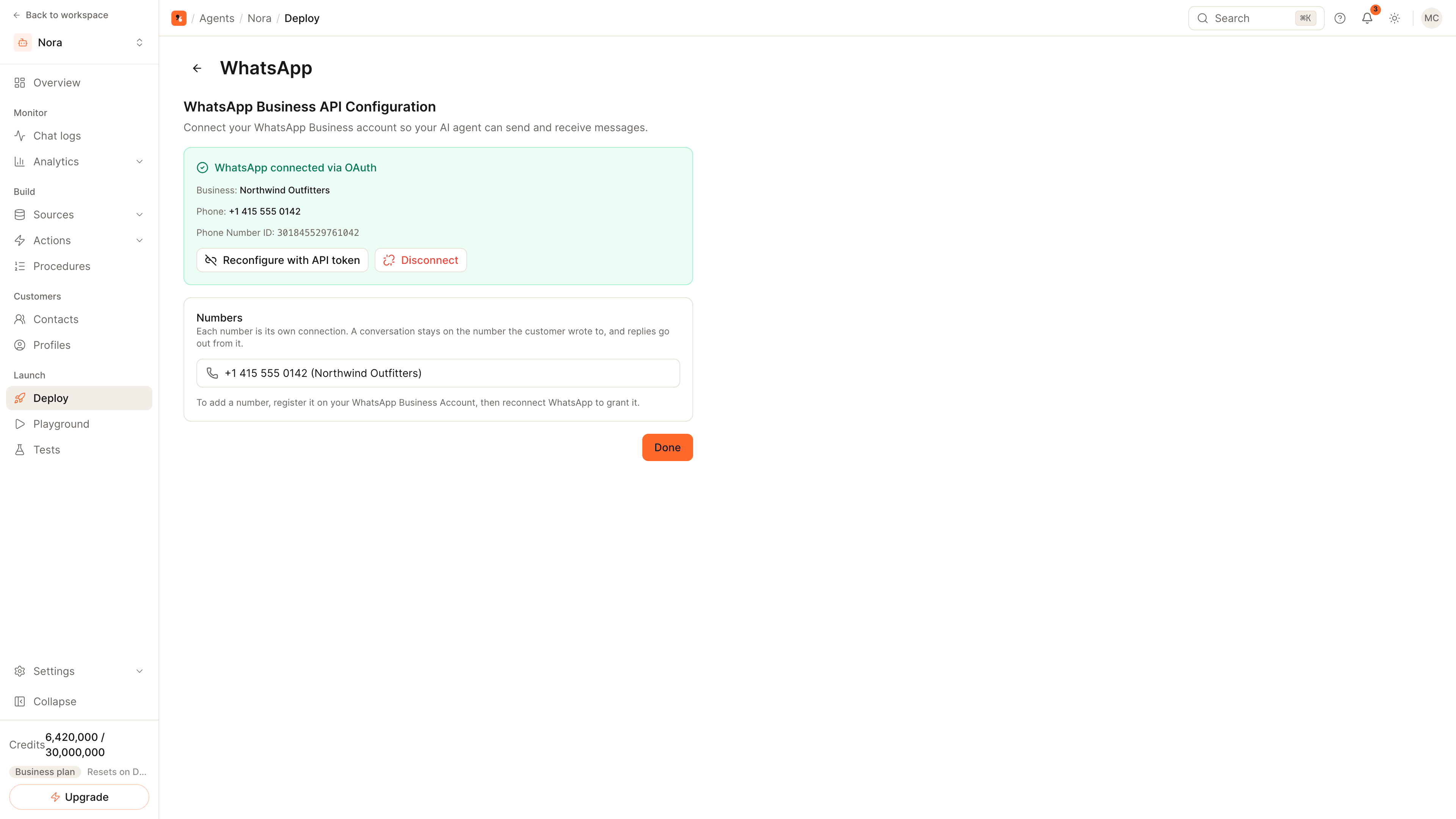
Back on Deploy, the WhatsApp card shows Active and a Manage button. Manage lists the connected business and phone number. If you would rather paste Meta credentials yourself, Manage also has a manual setup with the webhook URL to use.
Send a test message and set escalation
Message the number from another phone and ask something your knowledge covers. Then add escalation rules under Helpdesk so a teammate can take over; their replies go out in the same WhatsApp conversation.
What you need before you start
- A Meta Business account with a WhatsApp Business account in it, and a login that may manage it.
- A Sell Whisper AI agent with knowledge added. An agent with no sources has nothing to answer from.
- The Starter plan or above.
What changes once WhatsApp is connected
The agent answers each incoming WhatsApp message from the same knowledge base, instructions and actions it uses on your website. Conversations appear in the agent's chat logs next to the ones from other channels, and escalation rules apply to them too.
A teammate who accepts an escalated WhatsApp conversation replies from Live chat, and the reply is delivered in WhatsApp. Meta allows a free-form business reply only within 24 hours of the customer's last message, so answer escalations the same day.
More on Pro and above
- Several numbers on one agent. Add numbers from the channel's Manage page. A conversation stays on the number your customer wrote to.
- A number you also use on your phone. Connect a number that is on the WhatsApp Business App and keep using the app. When you reply from the app, the agent stops replying in that conversation until you give it back.
- Campaigns. Send WhatsApp template messages to your contacts from your workspace settings.
Related
- WhatsApp channel page: what the agent can do on WhatsApp.
- How to hand AI conversations off to a human: set the rules before you go live.
- Multi-channel support: one agent across every channel.
Common questions
Which plans include WhatsApp?
Can I keep replying from my phone?
Why can a teammate not reply to an old WhatsApp conversation?
Get started
Put the steps into practice
Start free, no credit card required.