How to add an AI agent to Slack
Connect a Slack workspace to a Sell Whisper AI agent in one click so it answers direct messages and @mentions from your knowledge base. On Starter and above.
Do this in order
Open the agent's deploy page
In the dashboard, open the agent and go to Deploy. Slack is available on Starter and above; on Free the Slack card links to the plans instead.
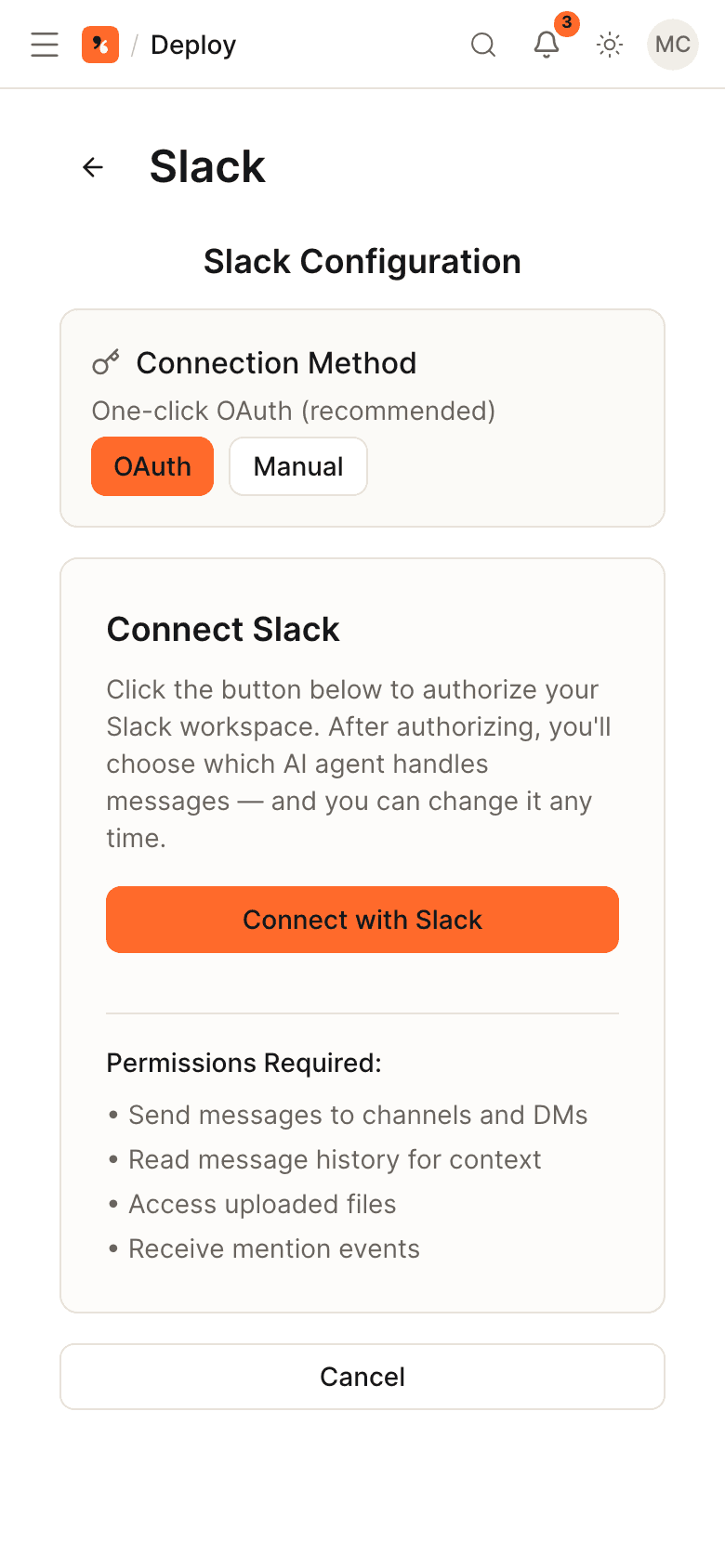
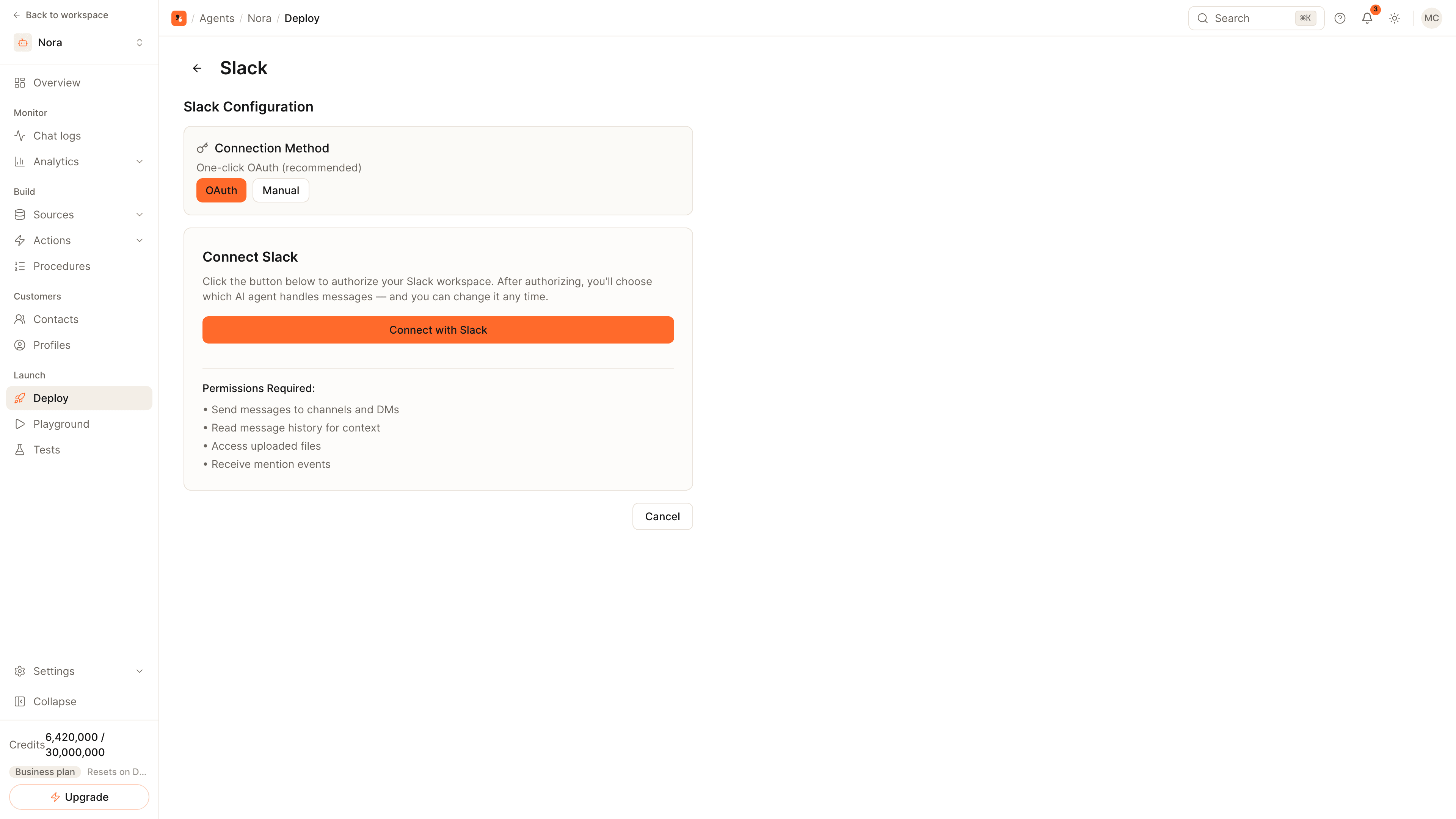
Connect with Slack
Click Connect with Slack on the Slack card. In the Slack window, choose the workspace, review the permissions and allow the app. The card then shows Active.
Invite the agent to a channel
In Slack, invite the agent to the channels where it should help, the same way you add any other app. It can also be messaged directly.
Mention it with a question
Send the agent a direct message, or @mention it in a channel. It answers from the agent's knowledge base and replies in the thread when you ask inside one.
What the agent does in Slack
- Direct messages: it answers every message sent to it.
- Channels: it answers when it is @mentioned, so it stays quiet during ordinary conversation.
- Threads: a question asked in a thread is answered in that thread.
Answers come from the same knowledge base, instructions and actions the agent uses on your website and your other channels.
Two common setups
- Internal help desk. Give the agent your handbook, policies and product documentation, invite it to a help channel, and let colleagues @mention it before they ask a person.
- Support team channel. Invite the agent to the channel where your support team works, so a teammate can @mention it for the policy or the product detail while answering a customer.
When a person is needed
Escalation rules apply in Slack as they do everywhere else. An escalated conversation goes to your team's Live chat, and the teammate's replies are posted back to the Slack channel or thread it started in.
Using your own Slack app
One-click connection installs the Sell Whisper AI Slack app. If your workspace only allows apps you create yourselves, open the channel's Manage page, choose Manual as the connection method and follow the list of scopes and events shown there.
Related
- Slack channel page: what the agent can do in Slack.
- How to train an AI agent on your website: add the content it answers from.
- How to hand AI conversations off to a human.
Common questions
Does the agent answer every message in a channel?
Can I use my own Slack app?
Can a teammate take over a Slack conversation?
Get started
Put the steps into practice
Start free, no credit card required.