How to answer support emails with an AI agent
Turn on email for a Sell Whisper AI agent, forward your support address to it and set the name and signature its replies carry. On Pro and above.
Do this in order
Turn on the email channel
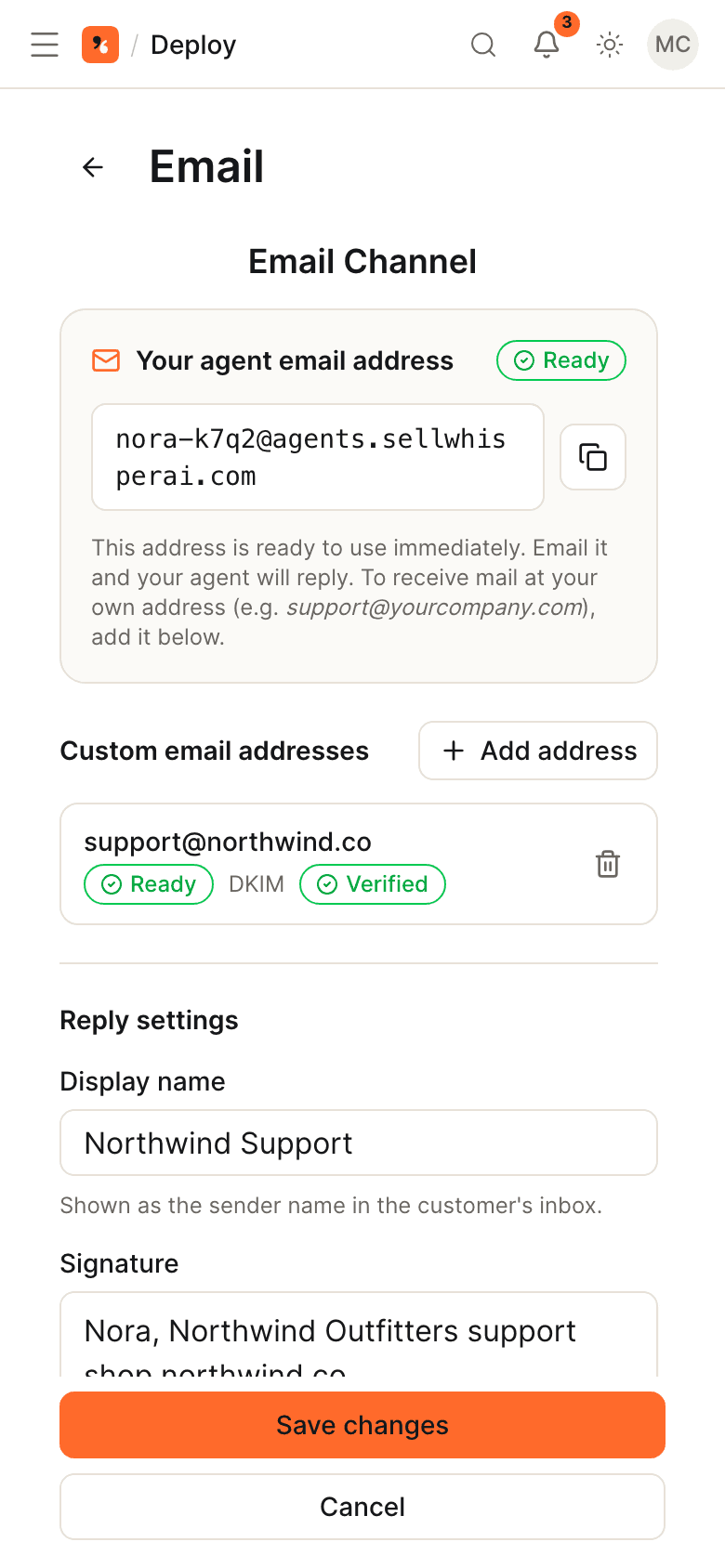
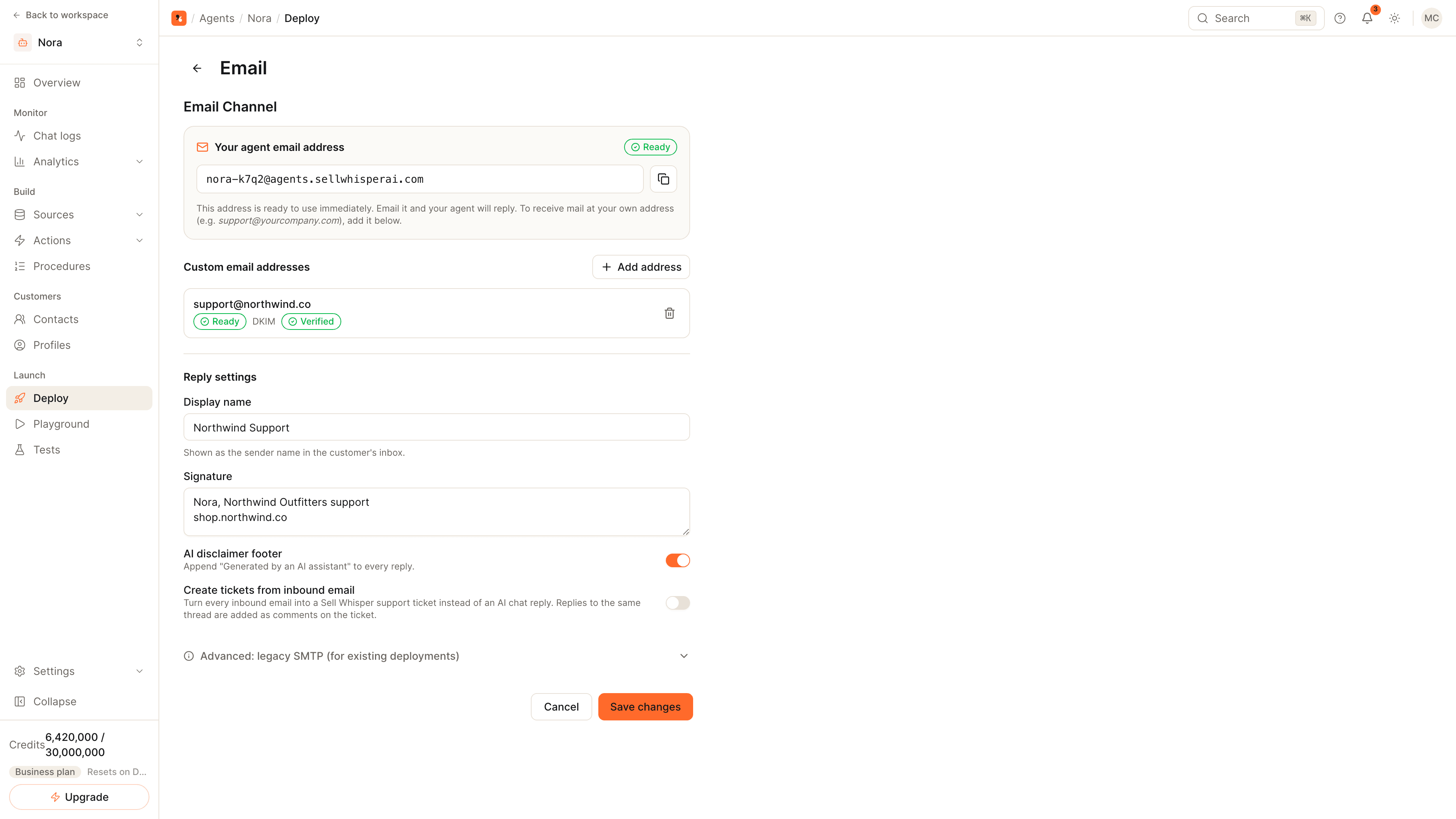
Open the agent, go to Deploy and click Setup on the Email card, then Save & enable. Email is available on Pro and above and is marked Beta in the dashboard. Enabling it gives the agent its own email address, which works straight away.
Add your support address
Under Custom email addresses, click Add address and enter the address your customers already write to, such as support@yourcompany.com.
Forward your mail and verify it
In your email provider, create a rule that forwards incoming mail for that address to the agent address, then click Verify forwarding. Add the DNS records shown for your domain; DNS changes can take up to 48 hours to propagate. Replies are sent from the agent's address, under your display name.
Set the reply details and test
Fill in the display name and signature, and choose whether every reply carries the AI disclaimer footer. Send an email to your support address and check the reply in the same thread.
The email channel is in Beta. It is available on Pro and above.
How mail reaches the agent
- Your customer writes to your support address, as they do today.
- A forwarding rule in your email provider passes the message to the agent's own address.
- The agent reads the message, answers from your knowledge base and replies in the same thread.
- The reply is sent from the agent's address, with the display name and signature you set, and your customer answers in the same thread.
Until you add your own address, the agent address works by itself, which is enough for a first test.
Reply settings
| Setting | What it does |
|---|---|
| Display name | The sender name your customer sees |
| Signature | Text added under every reply |
| AI disclaimer footer | Adds a line saying the reply was generated by an AI assistant |
| Create tickets from inbound email | Opens a support ticket for each inbound email instead of an AI reply; later replies in the thread become comments on the ticket |
Tips
- Set the display name before you forward real mail. Replies leave from the agent's address, so the name is how your customer recognizes you.
- Start with one address. Forward a low-volume address first, read the replies for a week, then add the main one.
- Keep a person in reach. Add escalation rules so billing disputes and anything outside policy go to your team. See how to hand AI conversations off to a human.
Related
- How to train an AI agent on your website: email answers are only as good as the sources behind them.
- Ticket deflection: what to measure once email is live.
Common questions
Do I need my own SMTP server?
Can inbound emails become tickets instead of AI replies?
What happens when an email conversation is escalated?
Get started
Put the steps into practice
Start free, no credit card required.