How to connect an AI agent to Zendesk
Connect Zendesk to a Sell Whisper AI agent with OAuth so it replies to new tickets, searches your help center and escalates to your team. On Pro and above.
Do this in order
Open the Zendesk channel
Open the agent, go to Deploy and click Setup on the Zendesk card. Zendesk is available on Pro and above.
Connect with OAuth
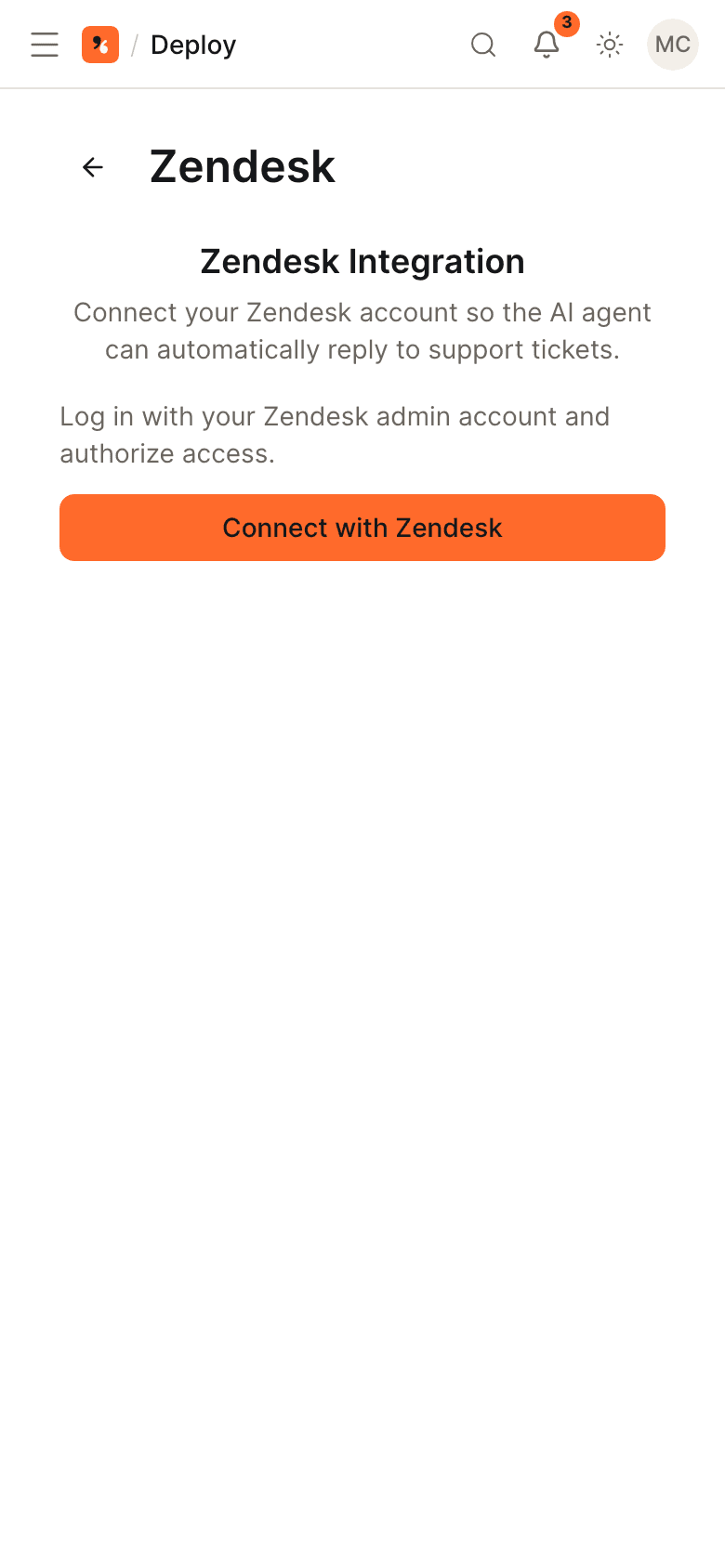
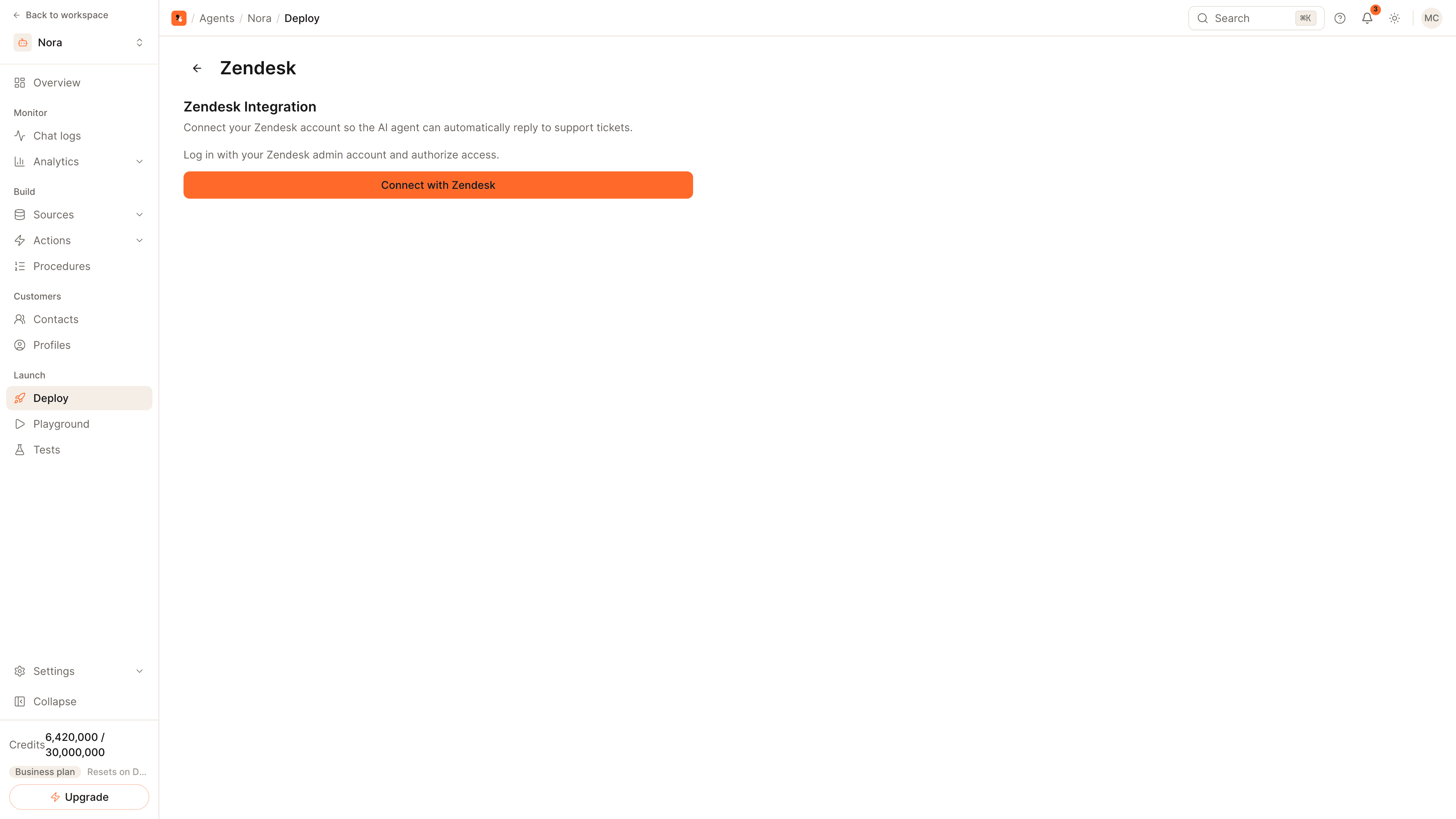
Click Connect with Zendesk, enter your subdomain (yourcompany for yourcompany.zendesk.com) and sign in with a Zendesk admin account to authorize. If the dialog asks for an OAuth client, create a confidential OAuth client in Zendesk with the redirect URL it shows and paste the client's identifier and secret.
Choose the Zendesk agent and reply settings
Under Zendesk Agent, select the Zendesk user the AI replies as. Under Zendesk AI Settings, keep Auto-reply enabled, add any Zendesk-specific instructions and save.
Test with a ticket
Create a ticket in Zendesk. The webhook and trigger are registered for you when you connect, so the agent posts a public reply and tags the ticket solveo-ai-reply and solveo-involved for your views and reports.
Two ways the agent works with Zendesk
As a channel. The agent answers tickets inside Zendesk. When a ticket is created or a customer adds a public comment, Zendesk notifies the agent, and its answer is posted on the ticket as a public reply. Your team keeps working in Zendesk as before.
As an integration. From any other channel, such as your website widget or WhatsApp, the agent can act in Zendesk during a conversation:
- Create a ticket, read one, update it, search tickets and add a comment.
- Create a user, look one up or search users.
- Search your help center articles.
- List and apply macros.
- Escalate to your team by opening a ticket that carries an internal note and the conversation transcript.
Find the tickets the agent touched
Every ticket the agent replies to gets two tags, solveo-ai-reply and solveo-involved. Build a Zendesk view on either tag to review its answers, and use them in reports.
Give it something to answer from
A connected Zendesk account does not train the agent by default. Two things do:
- Closed tickets. Under Sources, then Tickets, turn on Sync closed tickets. Only closed tickets are imported, as read-only knowledge, and new ones are picked up weekly. Retrain the agent after an import.
- Your help center. Add its URL as a website source. See how to train an AI agent on your website.
Related
- Zendesk channel page: the full capability list.
- How to hand AI conversations off to a human: escalation rules for conversations that should not stay with the agent.
- Ticket deflection and resolution rate: what to measure after launch.
Common questions
Do I have to build a Zendesk trigger myself?
Can the agent do more than reply to tickets?
Can the agent learn from past tickets?
Get started
Put the steps into practice
Start free, no credit card required.