How to take Shopify cash-on-delivery orders with an AI agent and WhatsApp
Set up a Sell Whisper AI agent to take cash-on-delivery orders in your Shopify chat and to send WhatsApp shoppers a Shopify checkout link. On Pro and above.
Do this in order
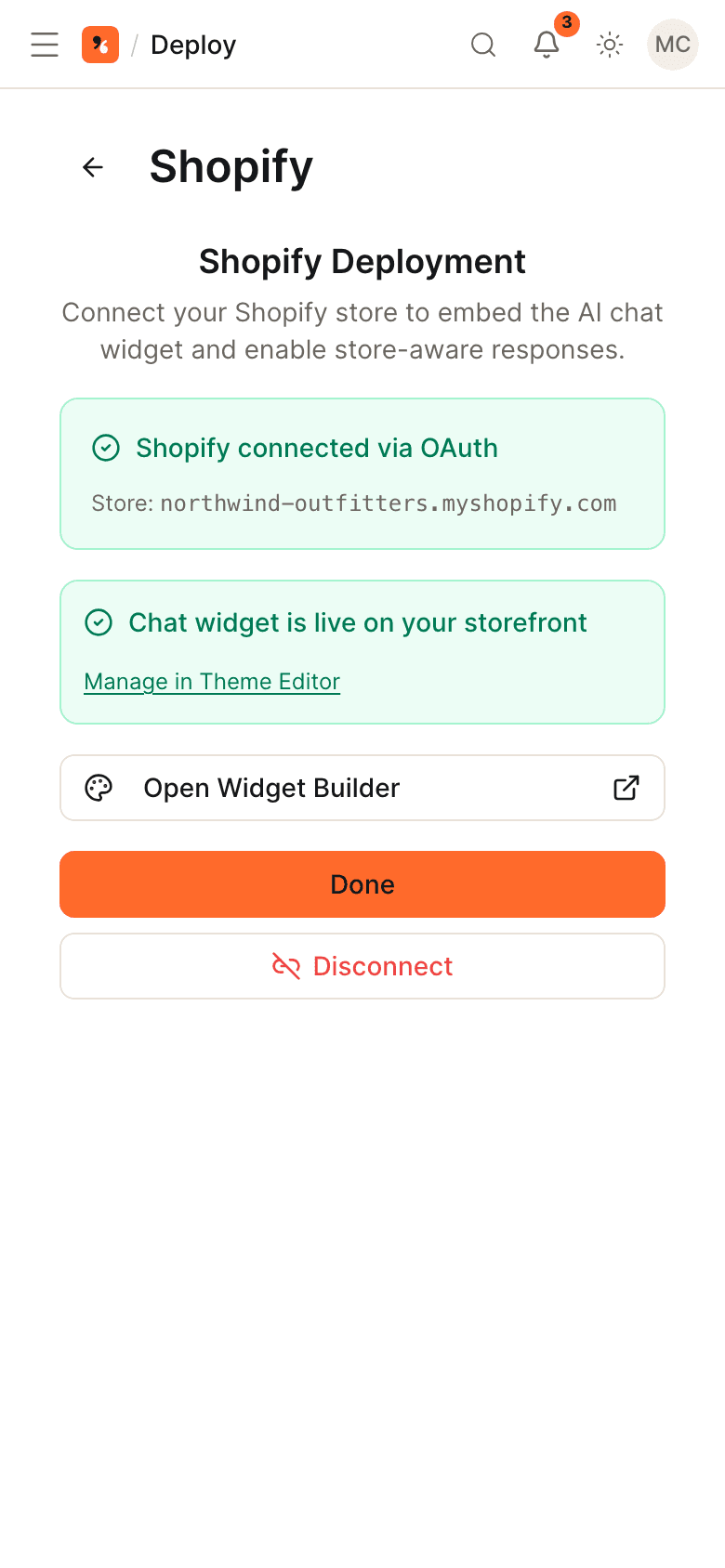
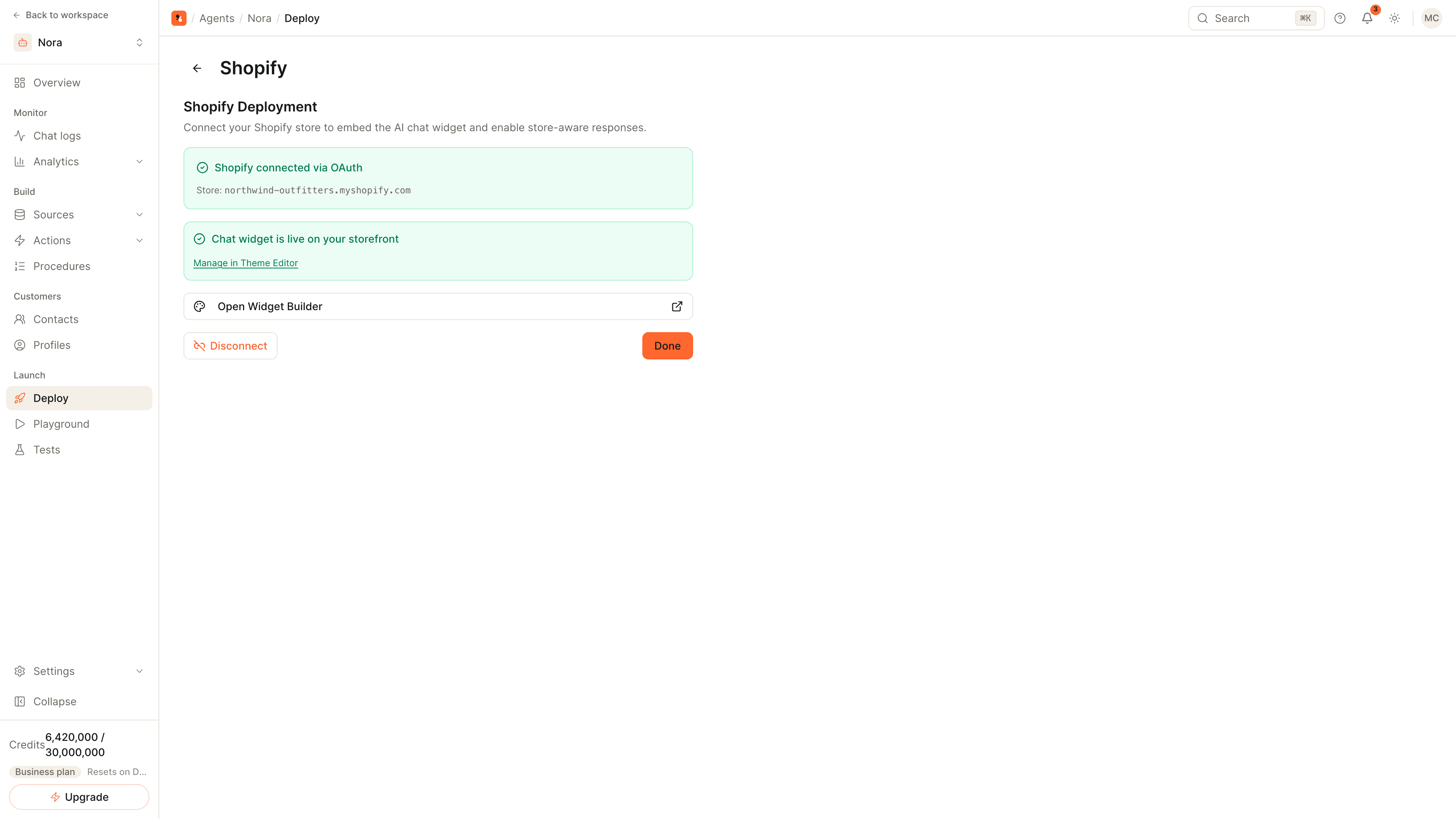
Connect Shopify and turn on the chat
Open the agent, go to Deploy, click the Shopify card and then Connect with Shopify. Open the theme editor link from the same card and save, which turns on the chat widget. Shopify is available on Pro and above on the website; installs from the Shopify App Store are billed through Shopify.
Turn on the order actions
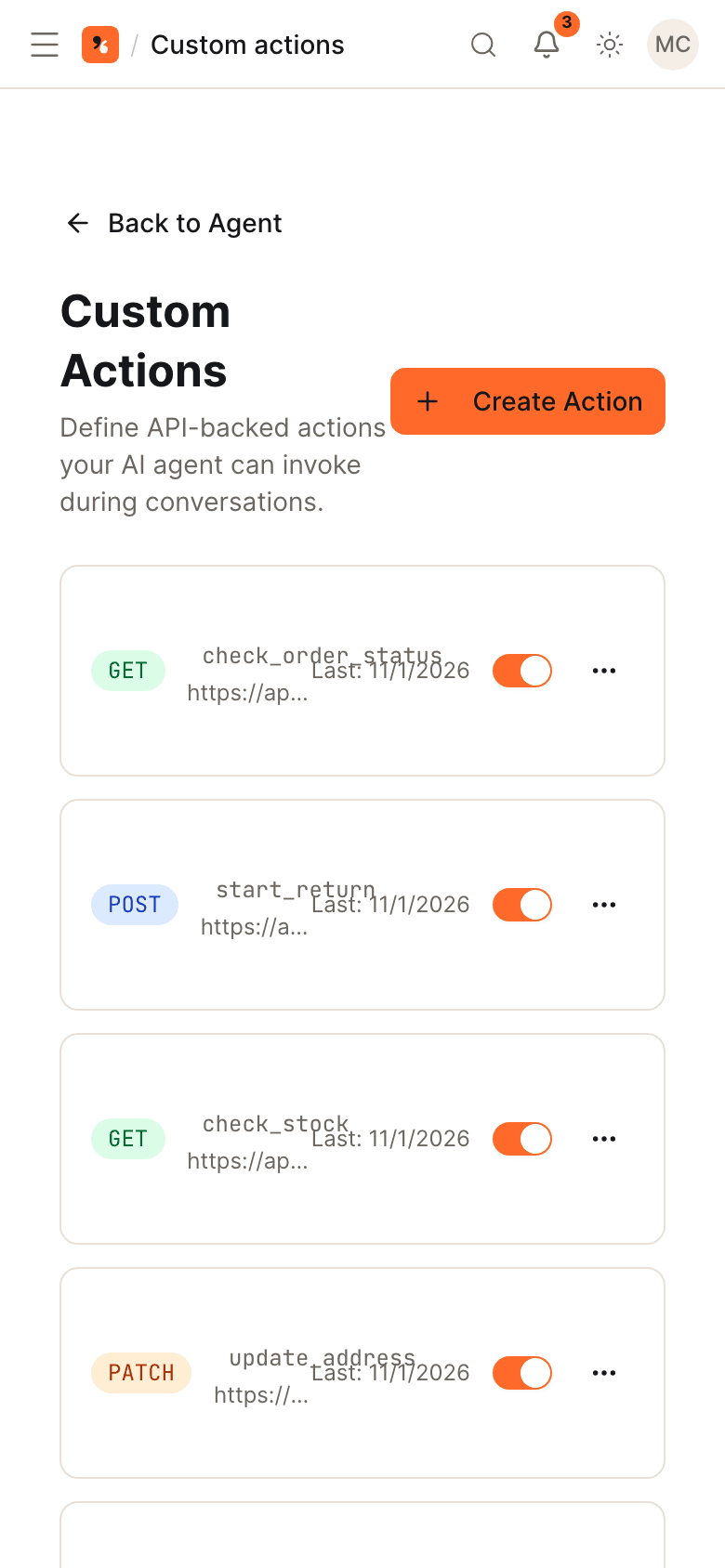
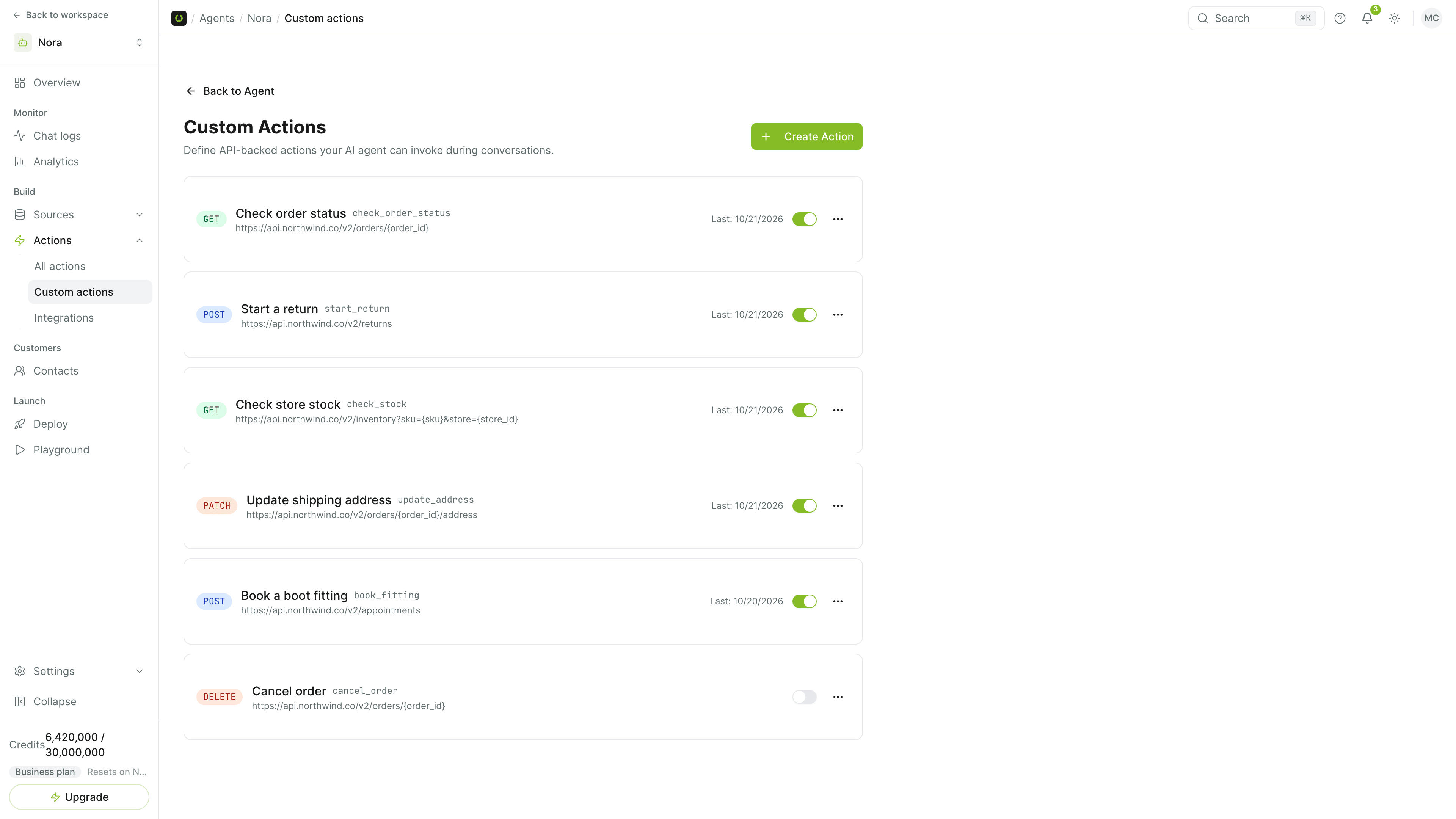
Under Actions, enable product search, add to cart, checkout and cash-on-delivery checkout. The agent offers the last three only to a signed-in shopper, someone logged in to their customer account on your store.
Place a test order in the store chat
Log in to a test customer account on your storefront, ask the agent for a product and say you want to pay on delivery. The agent confirms the items and the delivery address, then creates the order in Shopify with payment pending and the tag cash-on-delivery.
Connect WhatsApp and link a catalog
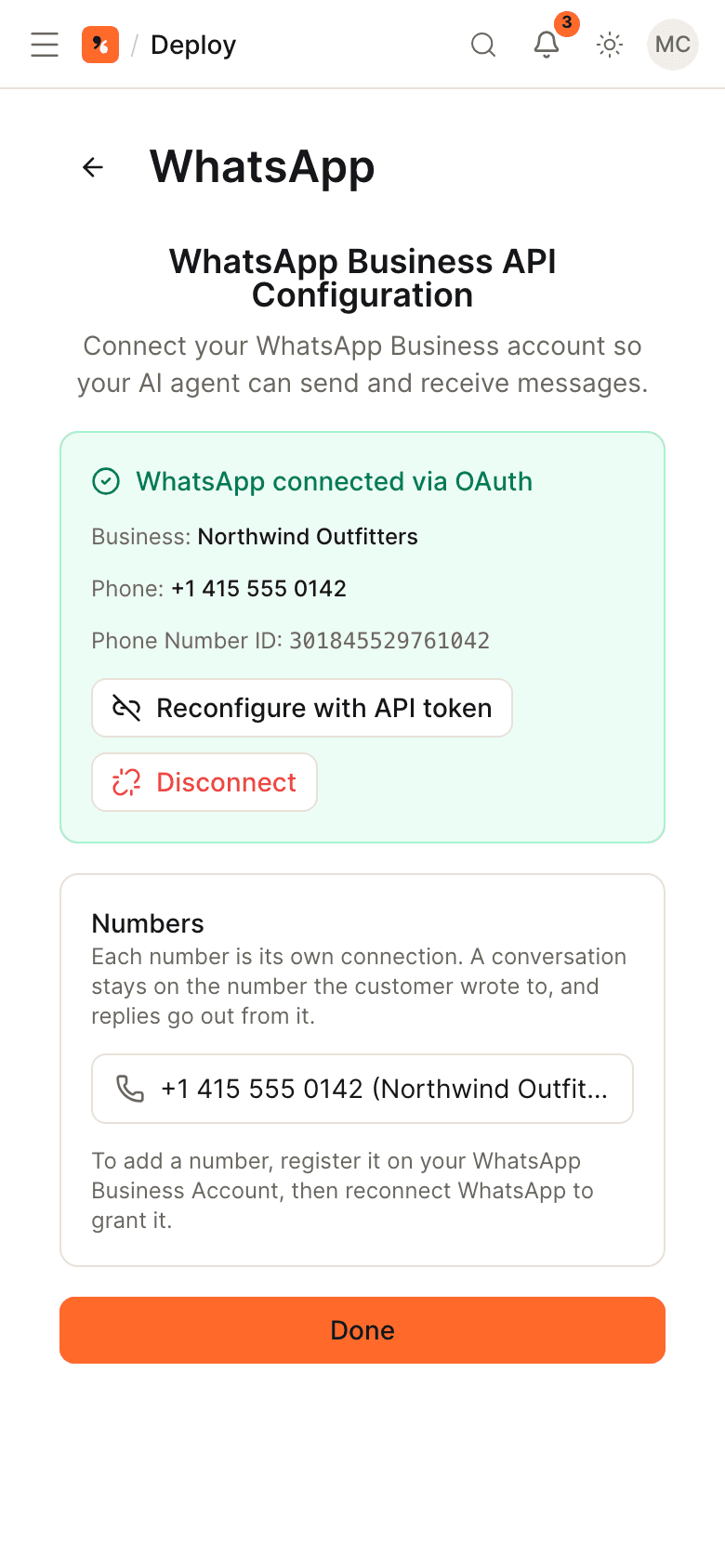
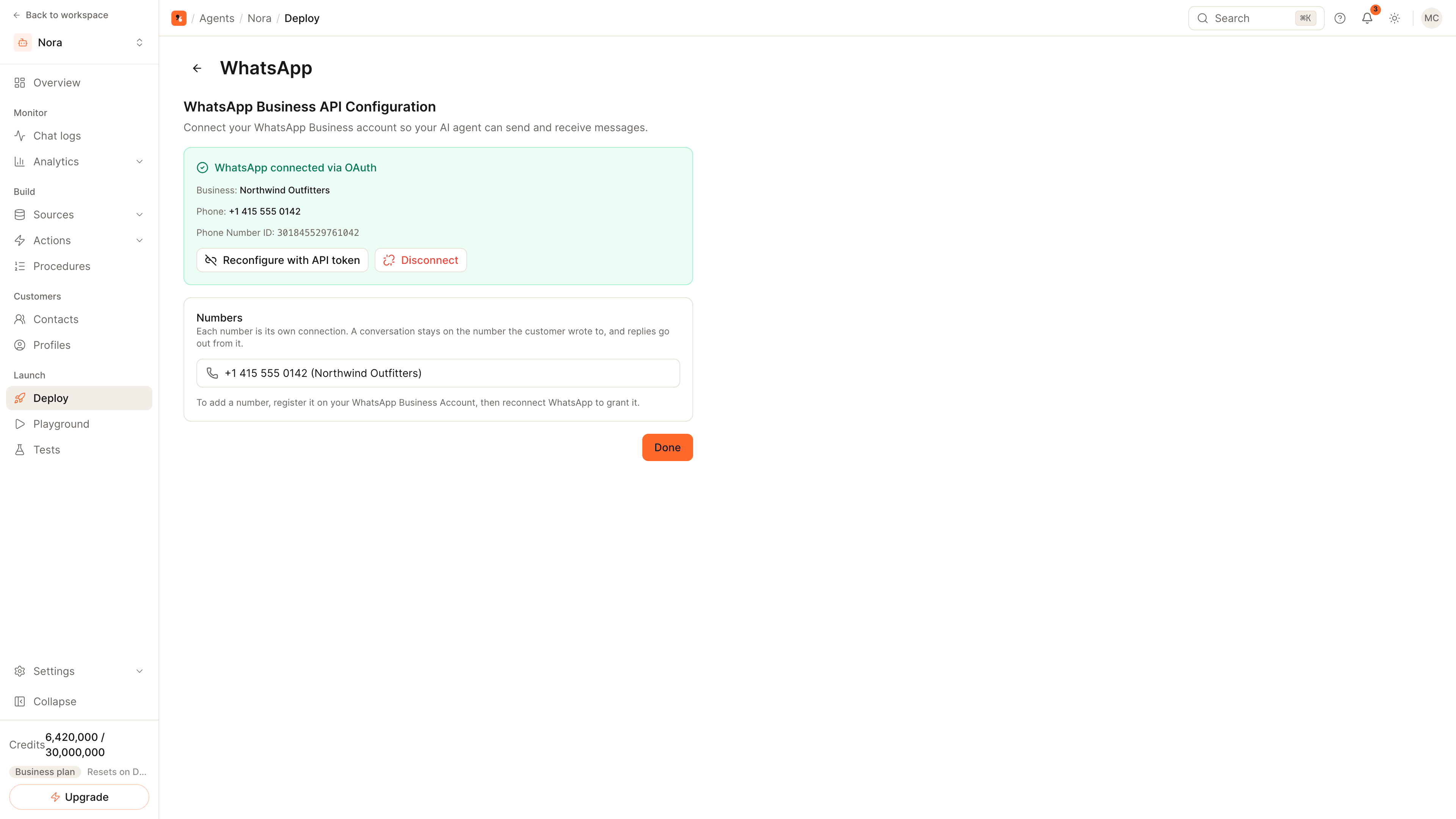
On Deploy, click Connect with Meta on the WhatsApp card. Then open Settings, WhatsApp catalog, and link a Meta catalog to the number. Your Shopify products are sent to it; a product with no image is skipped. The catalog is on Pro and above.
Send WhatsApp shoppers to checkout
On WhatsApp the agent shows products as product cards. The shopper builds a cart in WhatsApp and sends it, and the agent replies with a Shopify checkout link. The payment methods there, cash on delivery included, are the ones your Shopify checkout offers.
Where shoppers pay the courier, the order is often agreed in a chat before anyone opens a checkout page. This guide sets up both halves: the agent takes the cash-on-delivery order itself in your store's chat, and on WhatsApp it shows your products and sends the shopper to your Shopify checkout.
What happens where
| Store chat (signed-in shopper) | ||
|---|---|---|
| Finds products | By text or by a photo | By text or by a photo |
| Shows products | Product cards in the chat | WhatsApp product cards, one or a list |
| Builds the order | Cart held as a Shopify draft order | The shopper's cart in WhatsApp |
| Places the order | The agent creates it, payment pending, tagged cash-on-delivery | A Shopify checkout link; the shopper finishes there |
| Refunds and order lookup | Yes, on the shopper's own orders | No |
The difference comes from identity. In your store's chat the agent knows which customer is logged in, so it can act on that account. On WhatsApp it knows a phone number, so it hands the shopper to Shopify's checkout for the last step.
The cash-on-delivery order, step by step
- A shopper who is logged in to your store asks for a product. The agent searches the catalog and shows it.
- The shopper says they want to pay on delivery.
- The agent reads back the items and the delivery address and asks for a yes.
- On yes, the agent creates the order in Shopify: payment pending, tagged cash-on-delivery, with the address. Stock is reserved and Shopify sends its order confirmation.
The order has no tax or shipping lines added. If your prices do not include tax and delivery, use the checkout link instead, which goes through Shopify's own checkout.
The WhatsApp order, step by step
- A shopper messages your WhatsApp number and asks for a product, or sends a photo of one.
- The agent replies with product cards from your linked catalog.
- The shopper adds items to the cart in WhatsApp and sends the cart.
- The agent replies with a Shopify checkout link for that cart. The shopper picks a payment method there. Cash on delivery appears if your Shopify checkout offers it.
Tips
- Turn on file upload in the widget if you want shoppers to search by photo in the store chat. It is off by default.
- Give every product an image. Products without one are left out of the WhatsApp catalog.
- Send disputes to a person. Add escalation rules for damaged goods and complaints. See how to hand AI conversations off to a human.
Related
- How to add an AI chatbot to a Shopify store: the connection in detail.
- How to connect an AI agent to WhatsApp: numbers, Meta and the Business App.
- The Shopify channel and the WhatsApp channel: everything the agent does on each.
Common questions
Can the agent place a cash-on-delivery order inside WhatsApp?
Does a cash-on-delivery order include tax and shipping?
How do I find these orders in Shopify?
Why must the shopper be signed in?
Get started
Put the steps into practice
Start free, no credit card required.