How to add an AI chatbot to a WordPress site
Install the Sell Whisper AI Chat Widget plugin from WordPress.org, paste your Widget ID and choose which pages show the chat. On every plan.
Do this in order
Create an agent and add knowledge
Sign up at /register, create an agent and add your site under Sources so it can answer. WordPress is available on every plan, including Free.
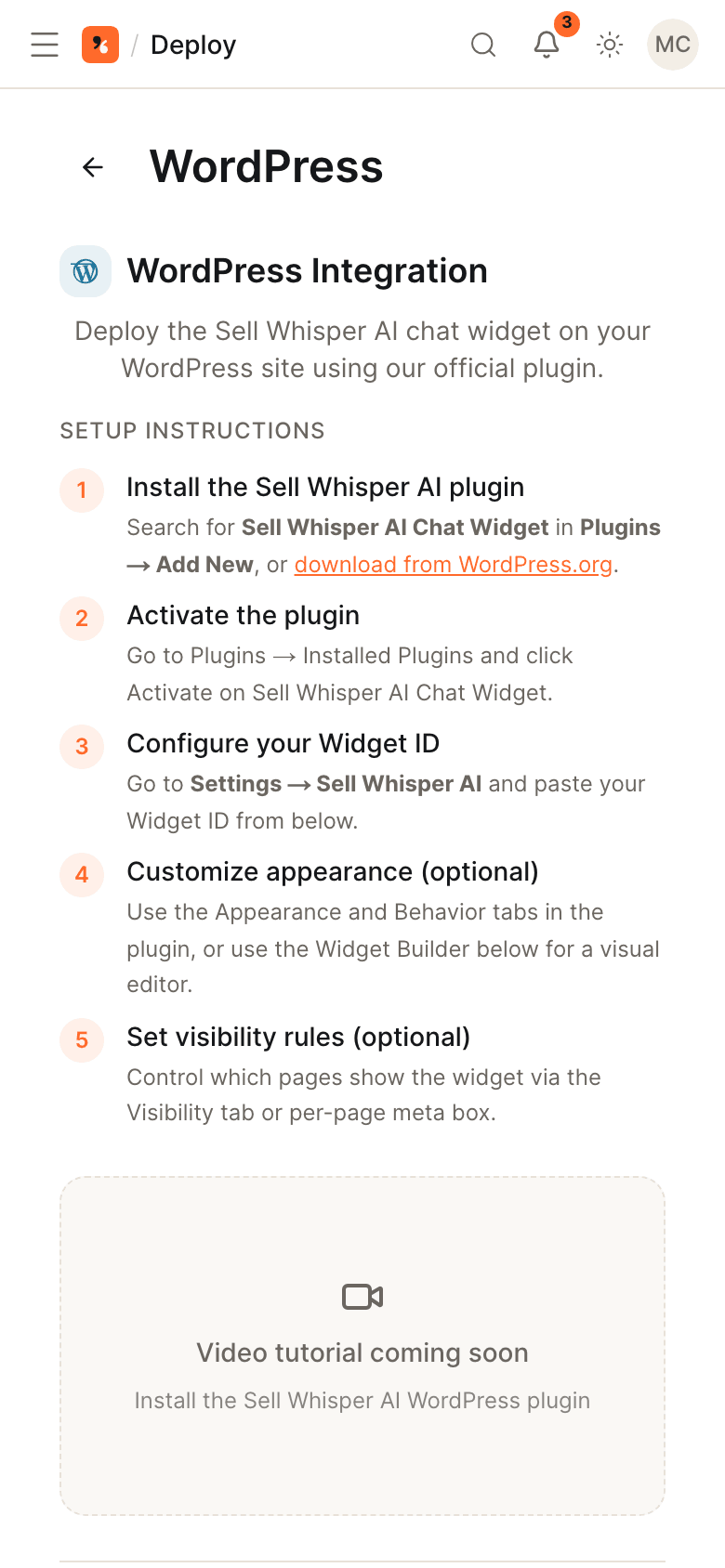
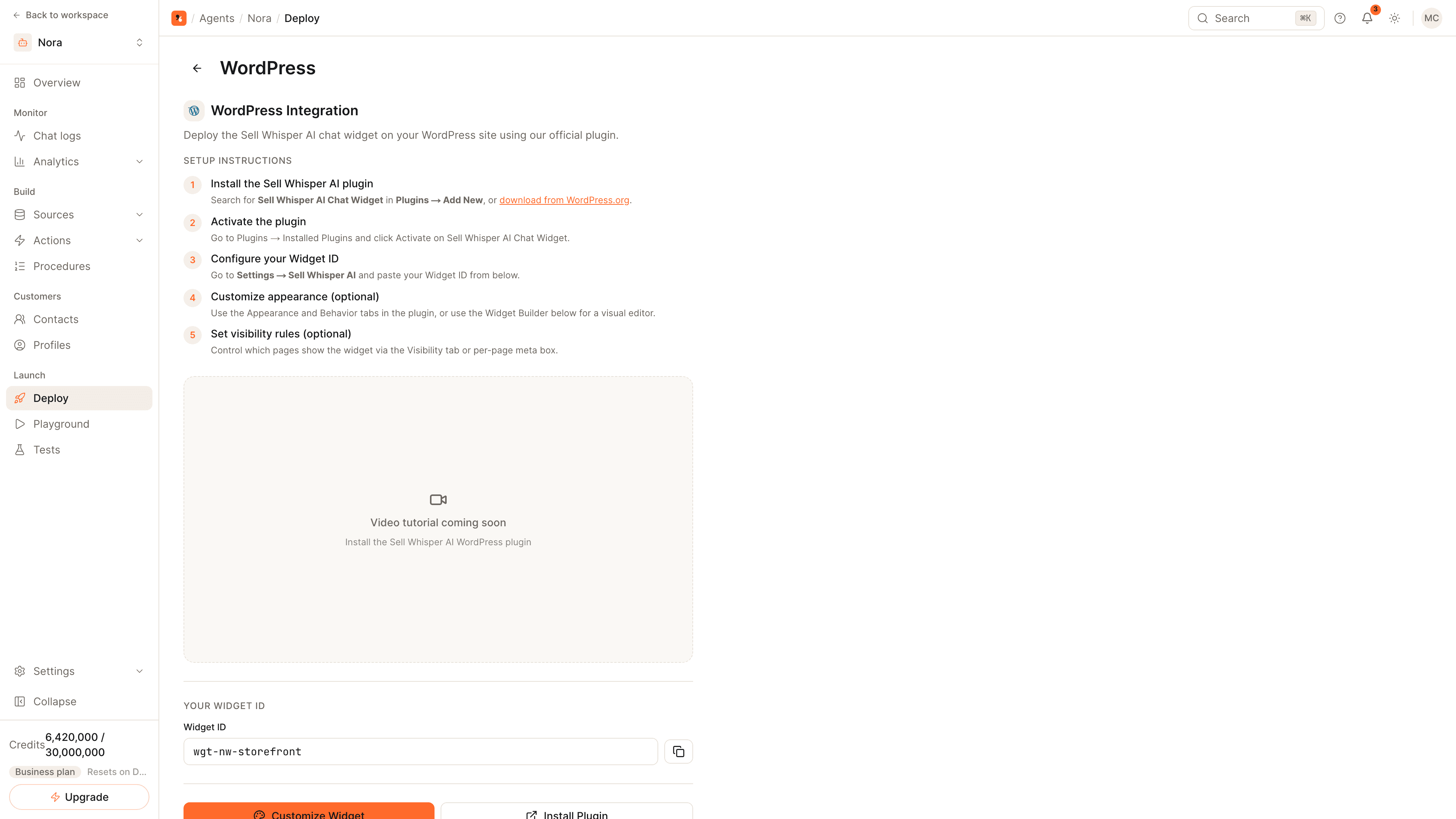
Install and activate the plugin
In WordPress, go to Plugins, then Add New, search for Sell Whisper AI Chat Widget, install it and activate it. The plugin needs WordPress 5.9 or later and PHP 7.4 or later.
Paste your widget ID
In the dashboard, open the agent, go to Deploy and open the WordPress card to copy your Widget ID. In WordPress, go to Settings, then Sell Whisper AI, paste the ID and save.
Choose where the widget shows
The widget appears on every page by default. Use the plugin's Visibility tab or the box on each page to include or exclude pages, and its Appearance and Behavior tabs, or the widget builder in the dashboard, to style it.
What the plugin does
The Sell Whisper AI Chat Widget plugin adds the chat widget to your WordPress site without editing theme files. It is listed in the WordPress.org plugin directory. The agent, its knowledge and its answers stay in your Sell Whisper AI dashboard; the plugin decides where the widget is shown.
Plugin settings
| Tab | What you set |
|---|---|
| Appearance | How the widget looks on this site |
| Behavior | How and when it opens |
| Visibility | Which pages show the widget |
A box in the editor of each page and post forces the widget to show or hide on that page alone.
If the widget does not show
- Clear the WordPress cache and any caching or optimization plugin.
- Check that the plugin is activated and the widget is enabled in its settings.
- Check the Widget ID against the one on the agent's WordPress card.
- If a security plugin or your host sets a Content Security Policy, allow
widget.sellwhisperai.comandapi.sellwhisperai.com.
Running a store?
The same plugin connects WooCommerce on Pro and above, so the agent can search products, look up orders and read the cart. Follow how to add an AI chatbot to a WooCommerce store.
Related
- How to train an AI agent on your website: import the site the widget sits on.
- How to add an AI support agent to your website: the embed script for sites that are not on WordPress.
- How to capture and score leads from chat.
Common questions
The widget does not appear. What should I check?
Do I need the plugin if I can edit my theme?
Does the plugin work with WooCommerce?
Get started
Put the steps into practice
Start free, no credit card required.