How to capture and score leads from chat
Turn on lead collection for a Sell Whisper AI agent, choose when the form appears, and let lead scoring and routing send qualified leads to your team.
Do this in order
Turn on the collect lead action
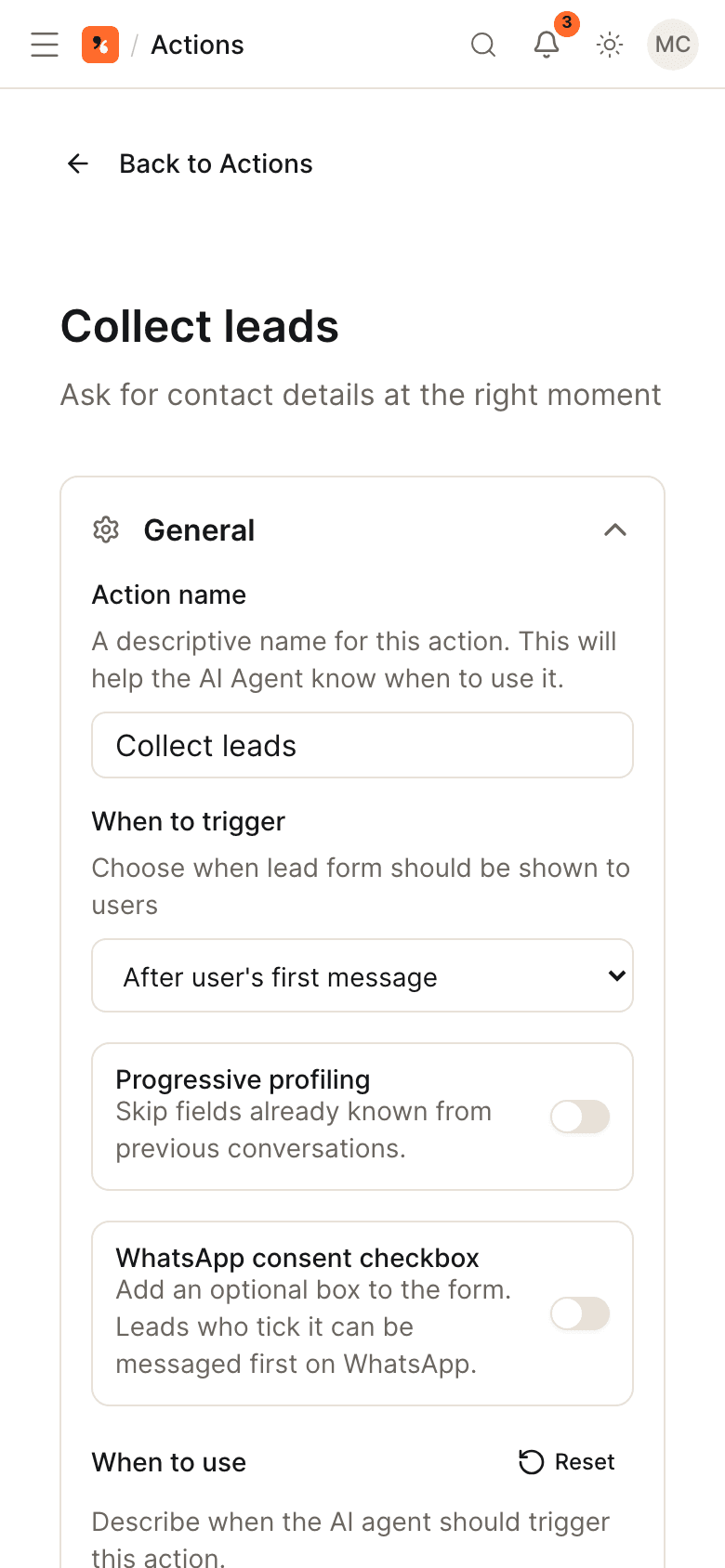
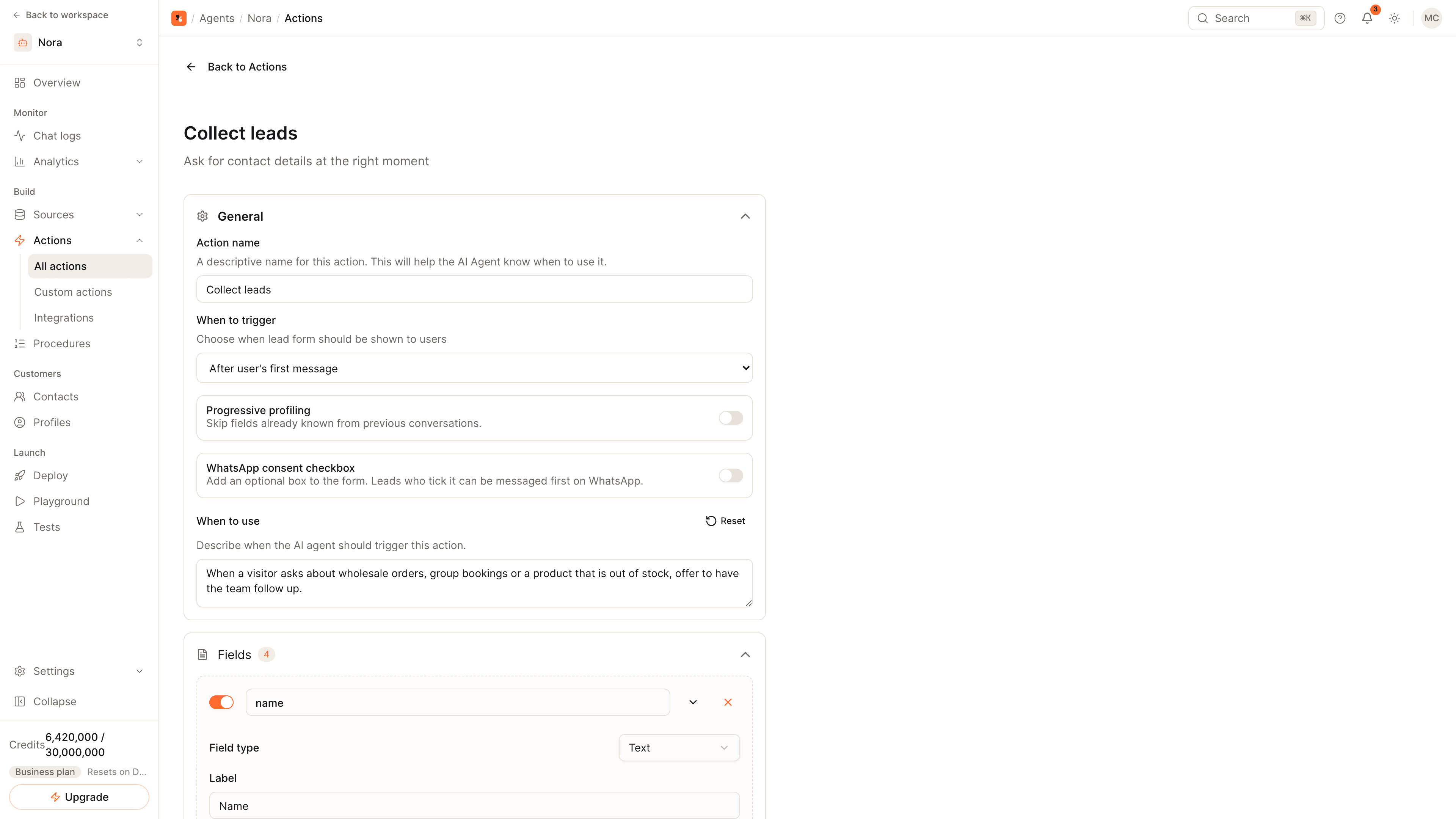
Open the agent, go to Actions and open Collect Lead. Choose when it triggers: before the chat starts, after the first message, when the AI judges it appropriate, on exit intent or after a delay. Then click Save & enable. Lead collection is available on every plan, including Free.
Choose the fields to ask for
Name, email and phone are the defaults. Add text, number, dropdown or date fields, and turn on progressive profiling to skip what is already known. On the widget your customer fills in a form; on messaging apps the agent asks in the conversation.
Set the score and the qualified threshold
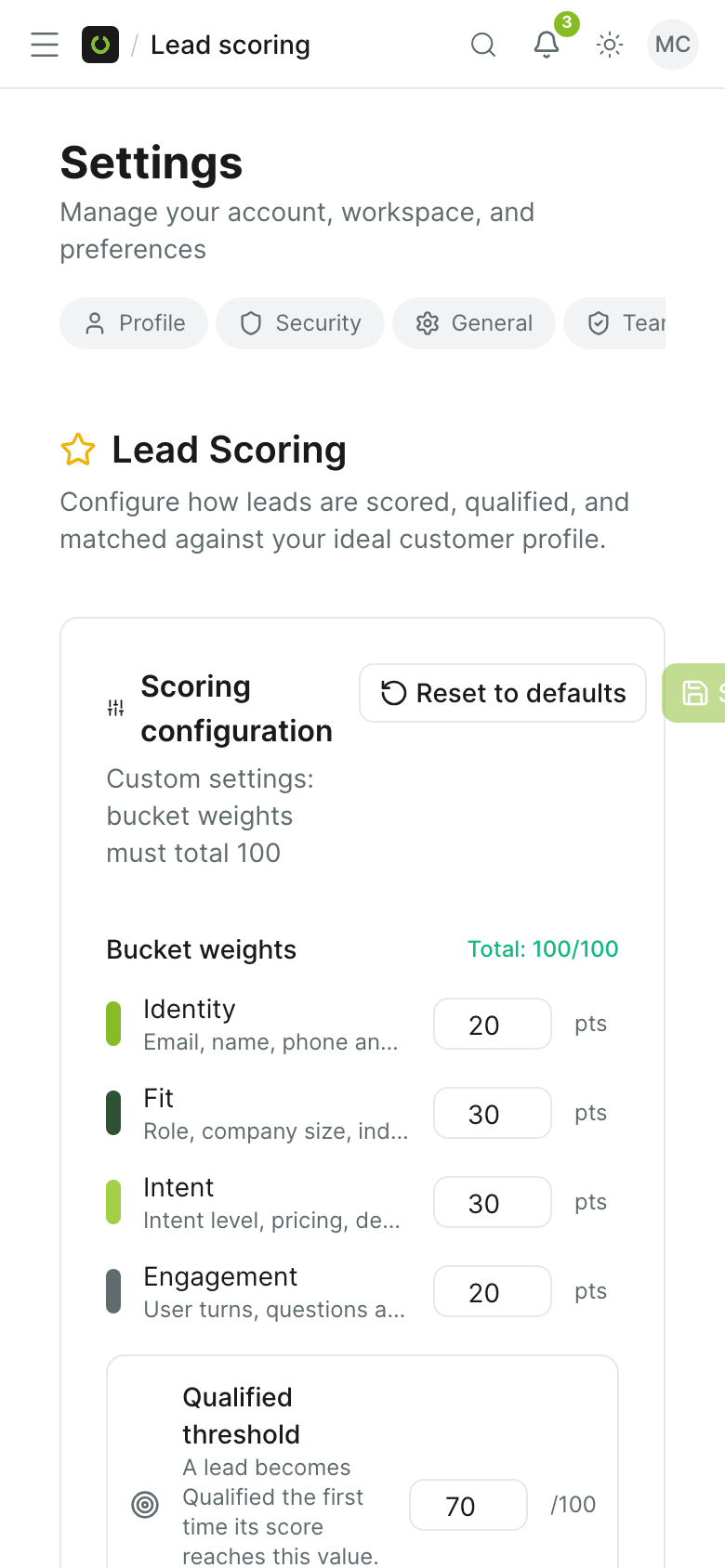
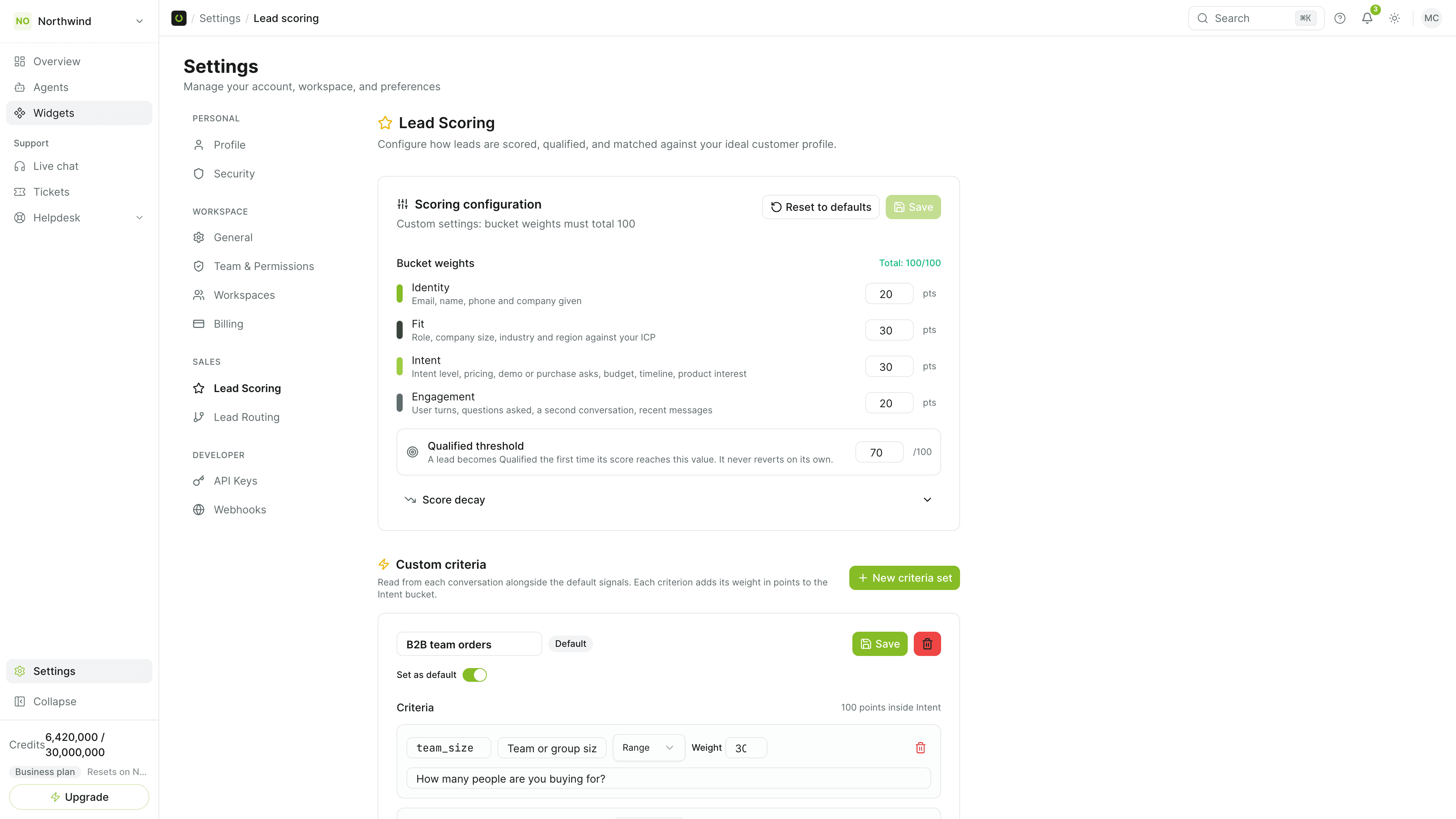
In Settings, open Lead Scoring. Every lead gets a score from 0 to 100 built from identity, fit, intent and engagement, and you set the weight of each. A lead becomes Qualified the first time its score reaches your threshold.
Route leads and follow up
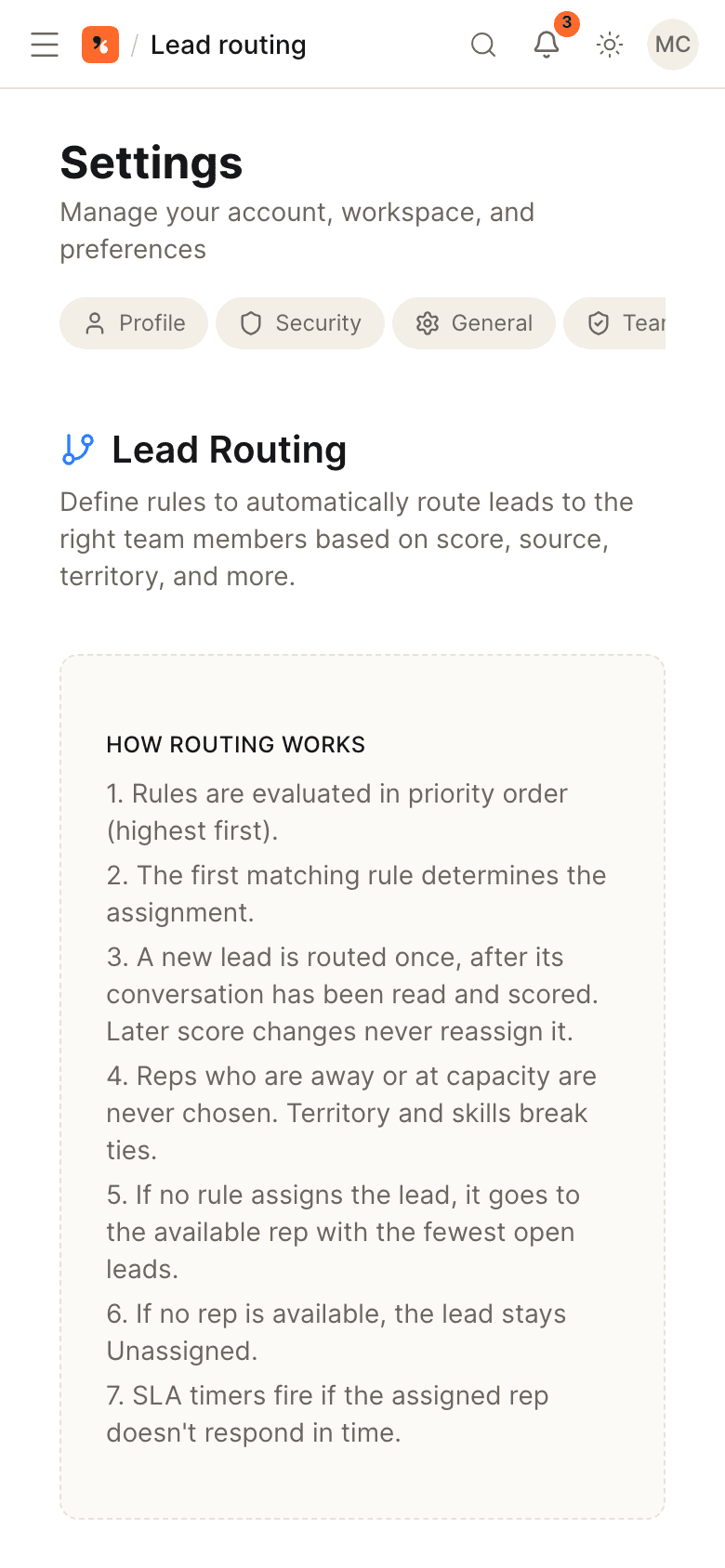
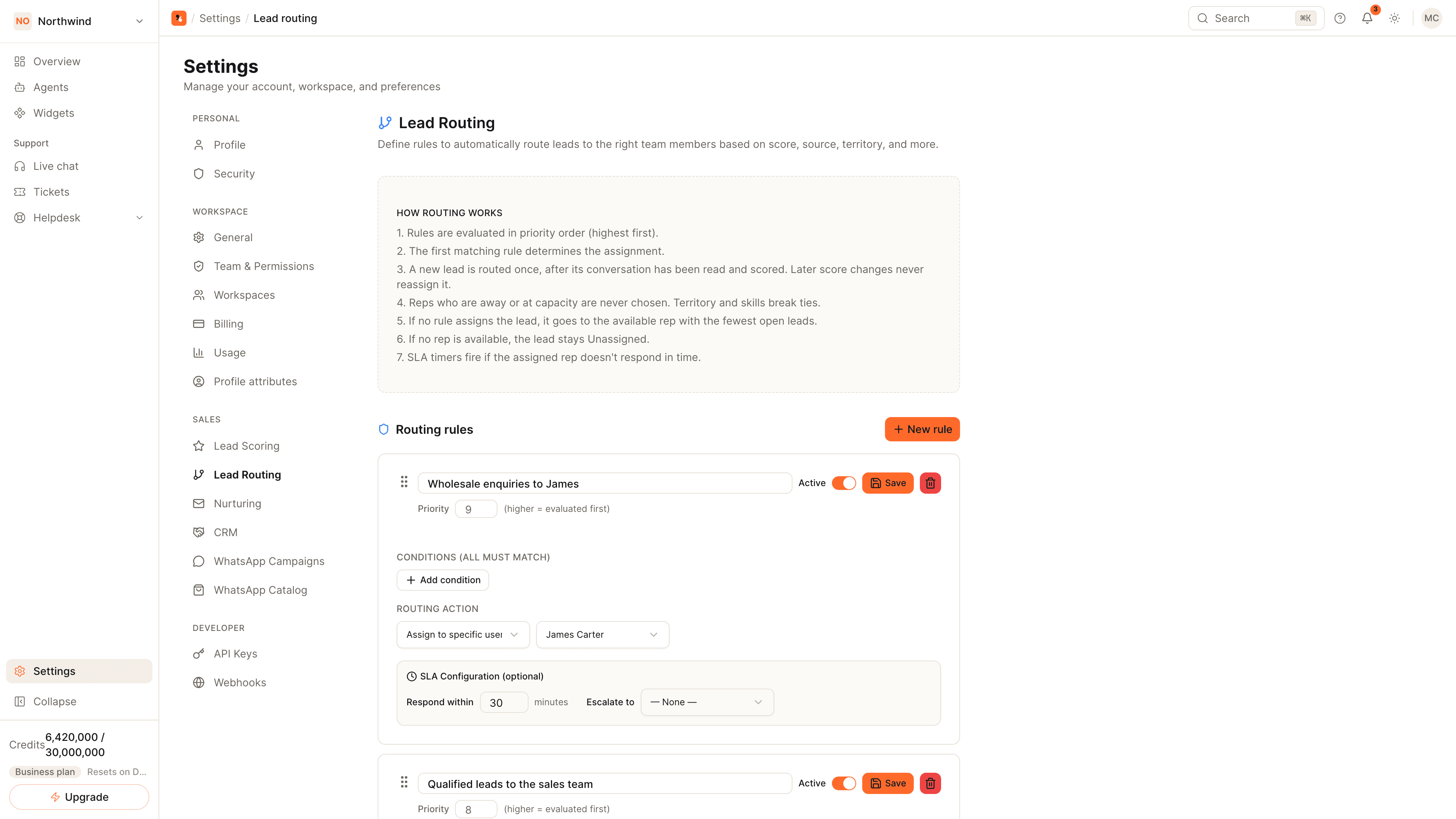
In Settings, open Lead Routing and add rules that assign a lead to a teammate, or to the best available team member, when its conditions match. Captured leads are listed under the agent's Contacts with their status, score, assignee and source.
When to ask for contact details
| Trigger | Good for |
|---|---|
| Before the chat starts | Support desks that need an email address for every conversation |
| After the first message | Asking once the visitor has shown what they want |
| When the AI judges it appropriate | Sales conversations, where the agent asks at the moment of interest |
| Exit intent | A last ask when the visitor moves to leave the widget |
| After a delay | Pages where visitors read for a while before writing |
On WhatsApp, Instagram and other messaging apps there is no form: the agent asks for the same fields in the conversation.
How the score is built
Each lead is scored from 0 to 100 across four buckets whose weights you set:
- Identity: email, name, phone and company given.
- Fit: role, company size, industry and region against your ideal customer profile.
- Intent: pricing, demo or purchase requests, budget, timeline and product interest.
- Engagement: how much the visitor wrote and asked, and whether they came back.
Custom criteria add your own signals, and score decay lowers the score of leads that go quiet. A lead that reaches the qualified threshold becomes Qualified and does not revert by itself. See the lead scoring definition.
After the lead is captured
- Statuses: New, Qualified, Converted and Lost.
- Routing: rules in Lead Routing assign a lead to a named teammate or to the best available one when every condition matches.
- Your CRM: send leads to HubSpot or Salesforce, or subscribe a webhook to new and updated leads.
- Meetings: let the agent book a call while the visitor is still in the conversation.
Full field and scoring reference: Leads.
Common questions
Is a lead created for every conversation?
Can leads be sent to HubSpot?
Can my own systems be told about a new lead?
Get started
Put the steps into practice
Start free, no credit card required.