How to connect an AI agent to Salesforce
Connect a Salesforce org to a Sell Whisper AI agent so it replies to cases, or drafts replies for review, and works with contacts and leads. On Pro and above.
Do this in order
Connect your org
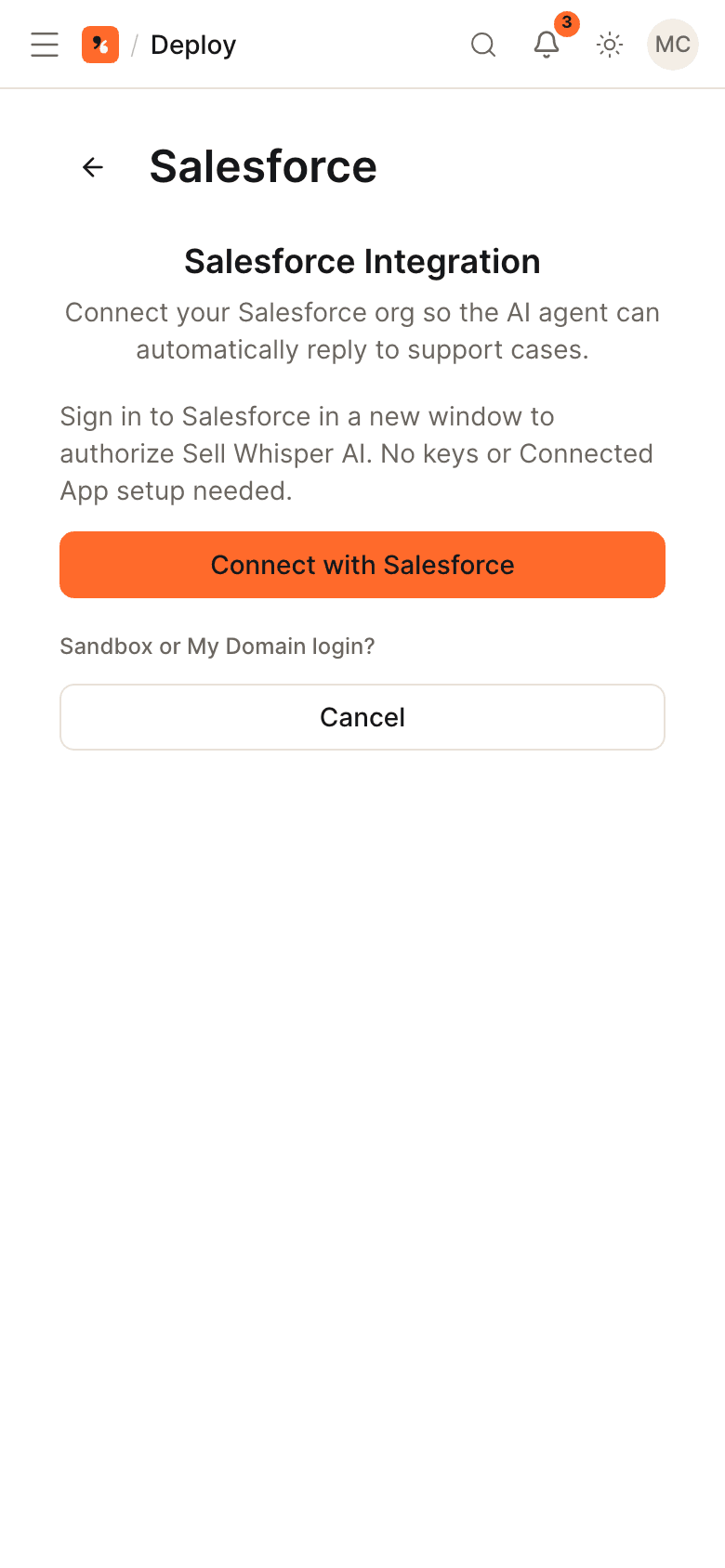
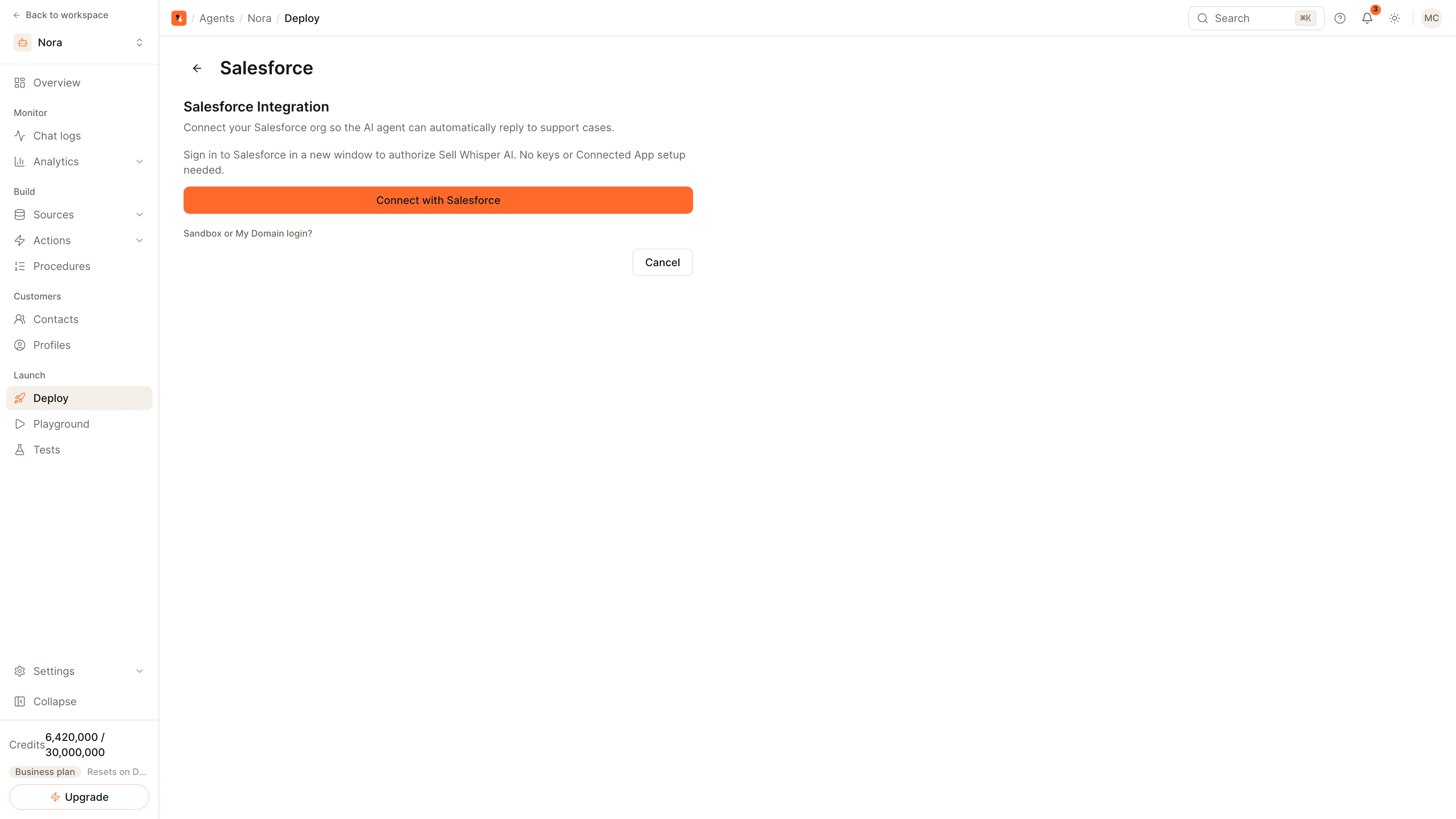
Open the agent, go to Deploy, click Setup on the Salesforce card and then Connect with Salesforce. Choose Production or Sandbox, add your My Domain if you use one, and authorize in the Salesforce window. Salesforce is available on Pro and above.
Send case events to the agent
In Salesforce, configure an Outbound Message that sends case data to your webhook endpoint. Without it the org is connected but the agent never hears about new cases.
Choose how replies are sent
Leave Auto-reply enabled to post public comments on new cases and comments. Or install the Sell Whisper Salesforce package and add the Draft Response action to the Case page, so your team reviews and edits each draft before it is posted.
Pick the case owner and test
Select the Salesforce user who should own auto-assigned cases, save, and open a test case. Check the reply on the case, then enable the Salesforce actions the agent should use in conversations.
Three ways to use the agent with Salesforce
| Mode | What happens | Who sends the reply |
|---|---|---|
| Auto-reply | The agent posts a public comment on new cases and new customer comments | The agent |
| Draft response | A person clicks the Draft Response action on the Case page and gets a suggested reply to edit | Your team |
| Actions in chat | On your website or a messaging app, the agent creates and reads Salesforce records during the conversation | The agent, in the chat |
You can run auto-reply and actions together, or turn auto-reply off and keep drafts for your team.
What the outbound message is for
Salesforce does not tell outside systems about new cases unless you ask it to. The Outbound Message you configure in Salesforce sends case data to the webhook endpoint for your connection, and that is what starts an auto-reply. Comments on a case are posted by the Salesforce user who authorized the connection, so many teams connect with a dedicated integration user.
Actions the agent can take
- Create, update and look up contacts.
- Create leads, opportunities and cases, and assign an owner.
- Look up a case by its case ID.
- Search Salesforce Knowledge articles.
- Escalate to your team by opening a case.
Passing a live chat to Salesforce
If your team answers chats in Salesforce, set up Enhanced Chat and Omni-Channel there and turn on Escalate to Salesforce for the agent. On the website widget, the agent then passes the conversation to a live Salesforce agent and stops replying once that person has it.
Related
- Salesforce channel page: the full capability list.
- How to capture and score leads from chat: decide which conversations become Salesforce leads.
- How to train an AI agent on your website: closed cases can also be imported under Sources, then Tickets.
Common questions
Can my team review replies before they are sent?
Can a chat on my website be passed to a Salesforce agent?
What can the agent do in Salesforce during a conversation?
Get started
Put the steps into practice
Start free, no credit card required.